Back to Help Hub
Dashboard manual

Dashboard explained block by block.

The dashboard is not just a document list. It is the operations room: next action, lifecycle, proof, templates, notifications, archive, and usage.

Authenticated dashboard screenshot
Open dashboard screenshot full size
Dashboard block

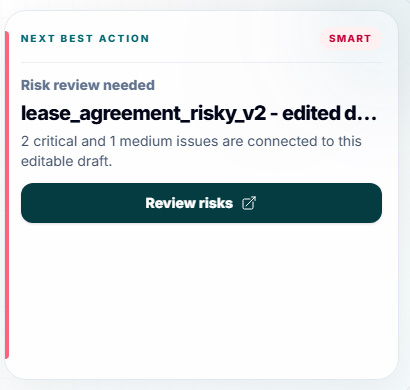
Next Best Action

Chooses the one most useful next move instead of showing every possible document action at once.

User question

What should I do next right now?

States to explain
Risky report waitingSaved online copyPackage waitingSigned package readyEmpty workspace
Next Best Action dashboard screenshot
/help-hub/dashboard-block-next-best-action.png

Captured from the seeded Help Hub test account. Click the screenshot to inspect the real product state full size.

Dashboard block

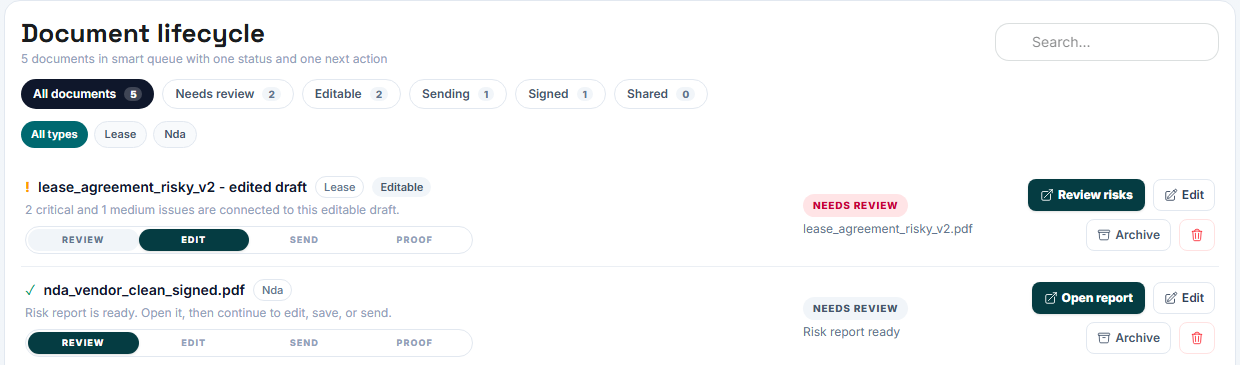
Operations Room

Shows the whole active queue in one compact area: review, draft, send, signed, and archive counts with one clear action per document.

User question

Which documents need action and what button should I press first?

Buttons in this block
States to explain
ReviewDraftSendSignedArchiveEmpty queue
Operations Room dashboard screenshot
/help-hub/dashboard-block-operations-room.png

Captured from the seeded Help Hub test account. Click the screenshot to inspect the real product state full size.

Dashboard block

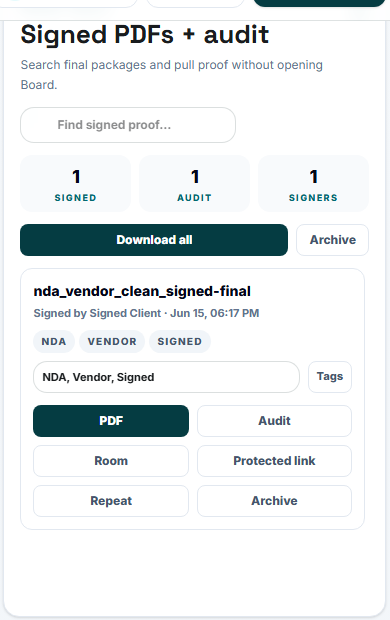
Proof Vault

Stores completed signed PDFs and audit evidence so the user can prove what happened later.

User question

Where is my signed PDF and proof?

States to explain
No signed packagesSigned package readyProof link protectedArchived proof
Proof Vault dashboard screenshot
/help-hub/dashboard-block-proof-vault.png

Captured from the seeded Help Hub test account. Click the screenshot to inspect the real product state full size.

Dashboard block

Archive

Removes reports, drafts, and packages from active work without deleting them.

User question

How do I clean the dashboard without losing records?

Buttons in this block
States to explain
Archive emptyArchived reportArchived draftArchived packageRestored item
Archive dashboard screenshot
/help-hub/dashboard-block-archive.png

Captured from the seeded Help Hub test account. Click the screenshot to inspect the real product state full size.

Dashboard block

Usage / Settings

Explains plan usage, AI token usage, profile, security, signature, and email signature settings.

User question

What limits did I use and what account settings control the product?

States to explain
Free limitLast AI sessionLifetime token usageSignature profileEmail signature
Usage / Settings dashboard screenshot
/help-hub/dashboard-block-usage-settings.png

Captured from the seeded Help Hub test account. Click the screenshot to inspect the real product state full size.

Never sign without understanding every clause.

BrieflyGo reviews your contracts in plain English — instantly.

Try for free →