June 12, 2026 · 7 min read
Send Anyway: how BrieflyGo moves risky documents forward without hiding the risk
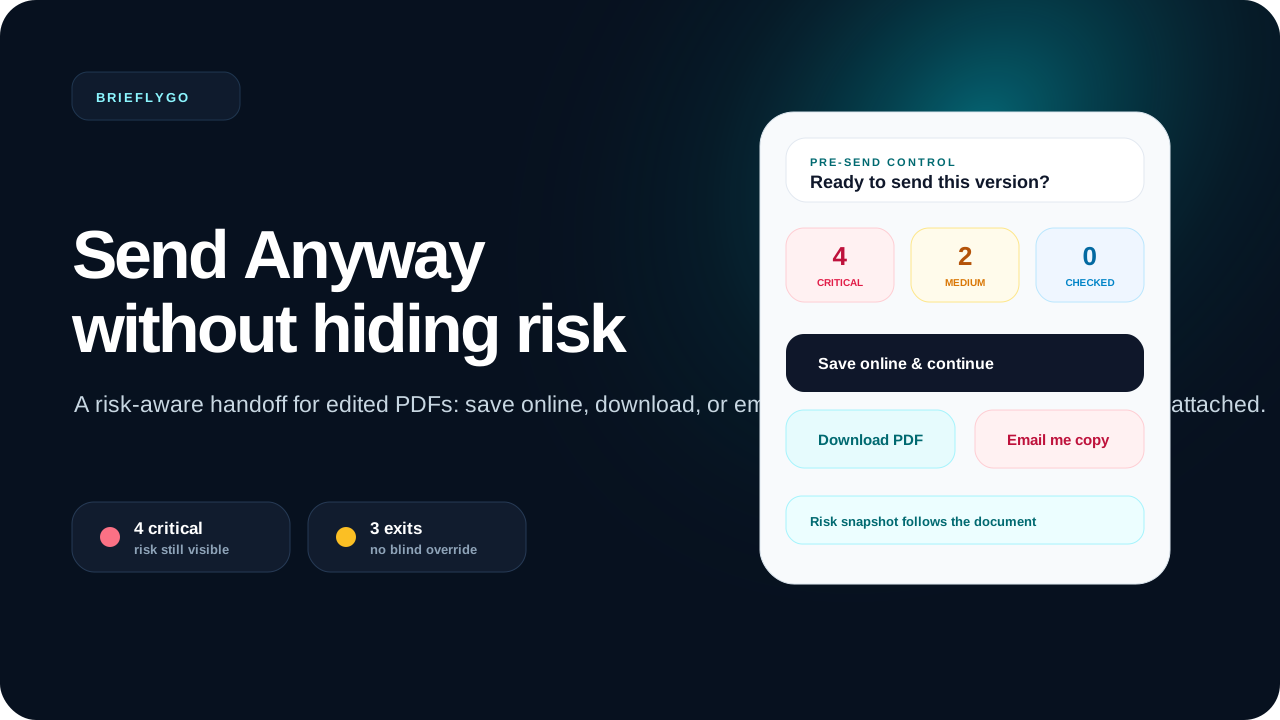
A behind-the-flow look at BrieflyGo's new Send Anyway experience: save a risky document online, download it locally, or email yourself a copy while keeping the AI risk snapshot attached.
In this article ▾
Most document tools treat risk as a binary gate. Either the document is ready to send, or the user is blocked. Real work is messier. A founder may need to share a draft with a cofounder. A freelancer may want to keep a copy before negotiation. A tenant may need to email themselves the current version before deciding whether to sign.
That is why we built Send Anyway in BrieflyGo as a controlled handoff, not a blind override. The user can move a document forward, but the unresolved risk context moves with it.
The problem: users still need an exit path
AI contract review is useful only if it fits into the next step of the document workflow. After a risk report, users usually want one of four things:
- Fix the document directly in the editor.
- Re-check the edited PDF to see whether the risky clause changed.
- Keep a copy even if unresolved issues remain.
- Route the document into a signing or recipient workflow.
A simple ?send? button is too vague for that. If critical risks remain, the product should not silently move forward. But it also should not trap the user inside an alert screen.
Step 1: the risk report becomes a decision screen
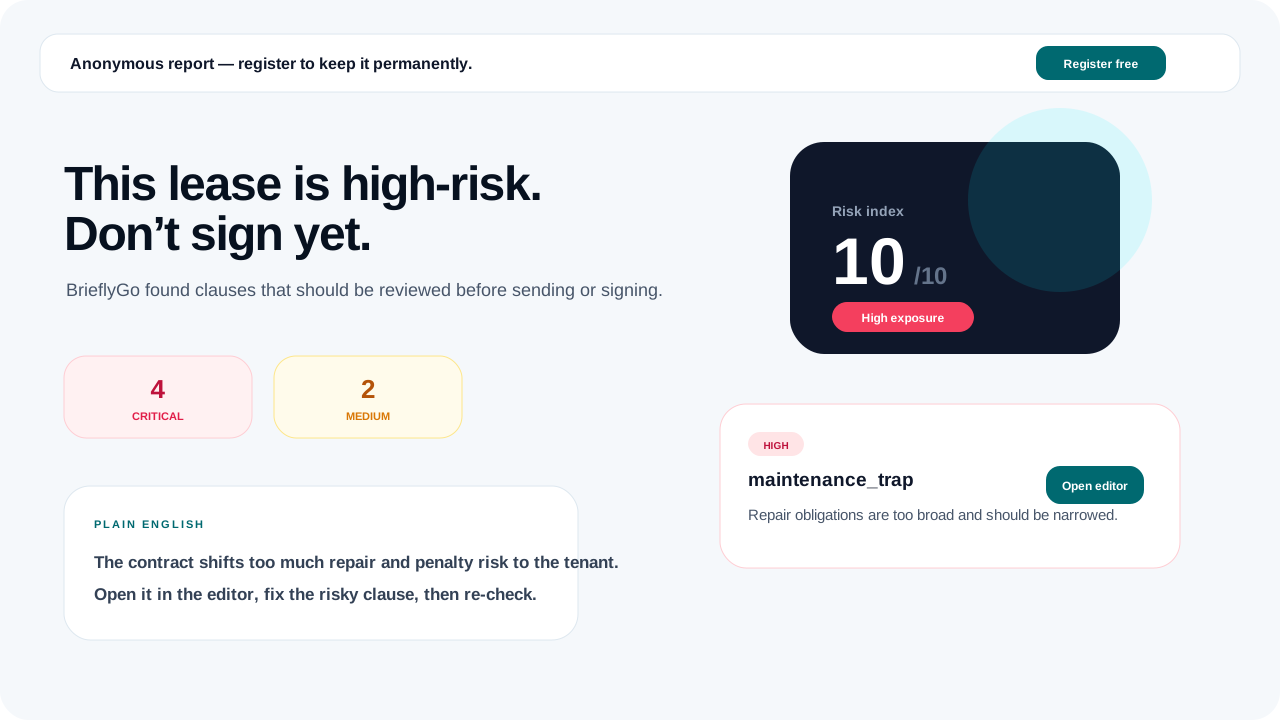
The flow starts with a risk report. BrieflyGo summarizes the document in plain English, ranks issues by severity, and shows the exact clause behind each risk. The user is not just told ?this is risky?; they can see what phrase created the risk and what a safer edit might look like.
Step 2: risk context follows the user into the editor
When the user opens the report in Soft Editor, the original document and the risk panel stay connected. The Locate action jumps to the relevant clause, so the user can change the text in context instead of copying suggestions into a separate editor.
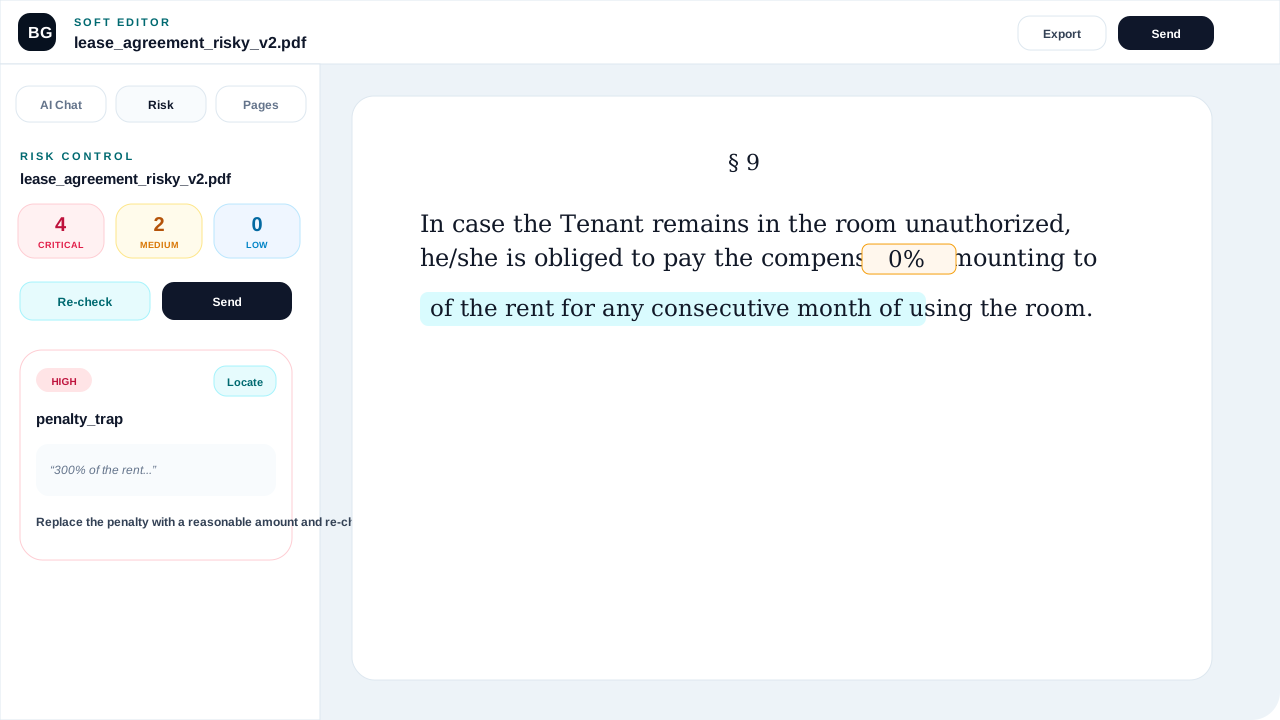
This is also where the distinction between visual overlays and real text edits matters. If the user adds a text overlay that visually covers a risky number, the PDF may still contain the original machine-readable text underneath. Re-check uses the edited PDF, so the safest path is to edit the native text item or apply a real replacement where possible.
Step 3: Pre-send control explains what is still unsafe
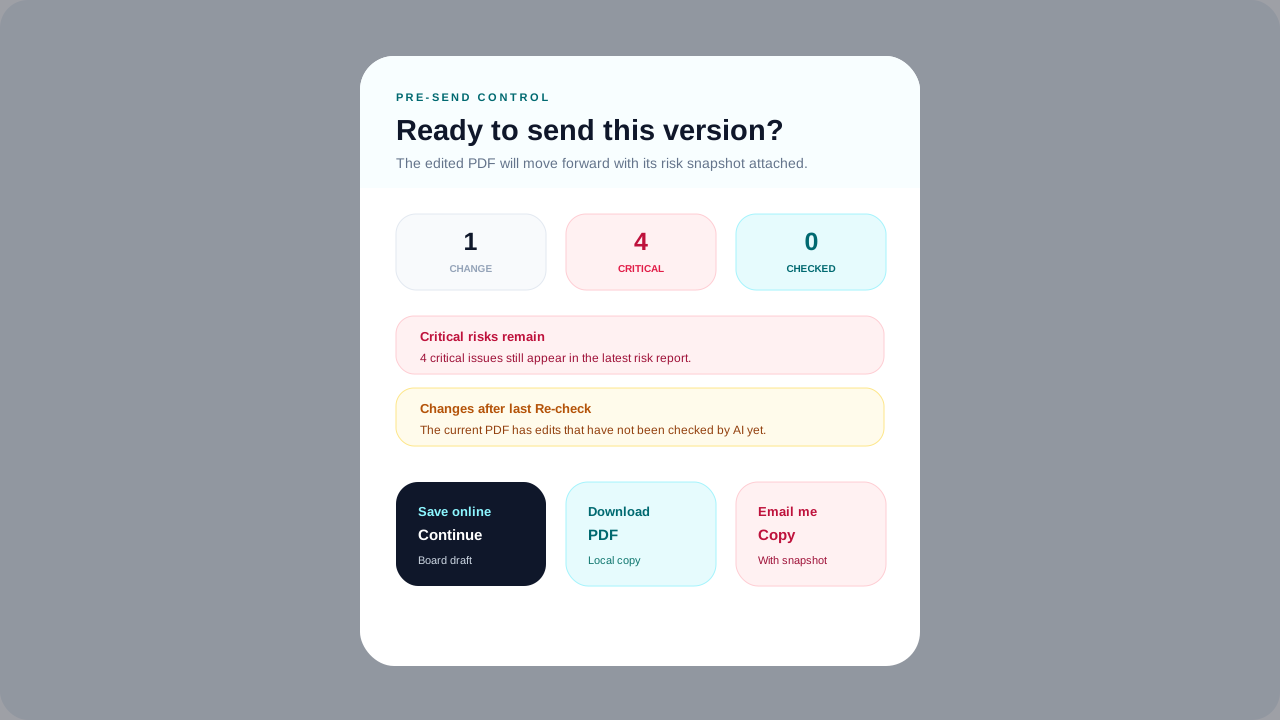
If the user clicks Send while critical risks remain, or after making changes that have not been re-checked, BrieflyGo opens a Pre-send control modal. It shows three pieces of context:
- Changes: how many editor edits exist in the current PDF.
- Critical risks: how many serious issues remain in the latest risk snapshot.
- Checked edits: how many changes were included in the last AI re-check.
Step 4: Send Anyway becomes three precise actions
Instead of one ambiguous override button, Send Anyway now offers three outcomes:
| Action | What it does | Best for |
|---|---|---|
| Save online & continue | Exports the edited PDF, creates a Board draft, and opens the recipient workflow. | Sending for signature or review while preserving risk context. |
| Download PDF | Downloads the current edited PDF to the user?s device without creating a workflow. | Keeping a local copy, forwarding manually, or archiving a negotiation draft. |
| Email me copy | Emails the edited PDF to the logged-in user with a small risk snapshot. | Moving the file to inbox, mobile, or another device without losing the warning context. |
Each action uses the same exported PDF. That matters: the document the user downloads, emails, or saves online should be the same version that was visible in the editor.
Step 5: the risk snapshot follows the package
When the user chooses Save online & continue, BrieflyGo creates a Board draft and opens the recipients screen. If the document came through Send Anyway, the recipients page shows a compact warning banner with the same snapshot: critical count, editor changes, and checked edits.
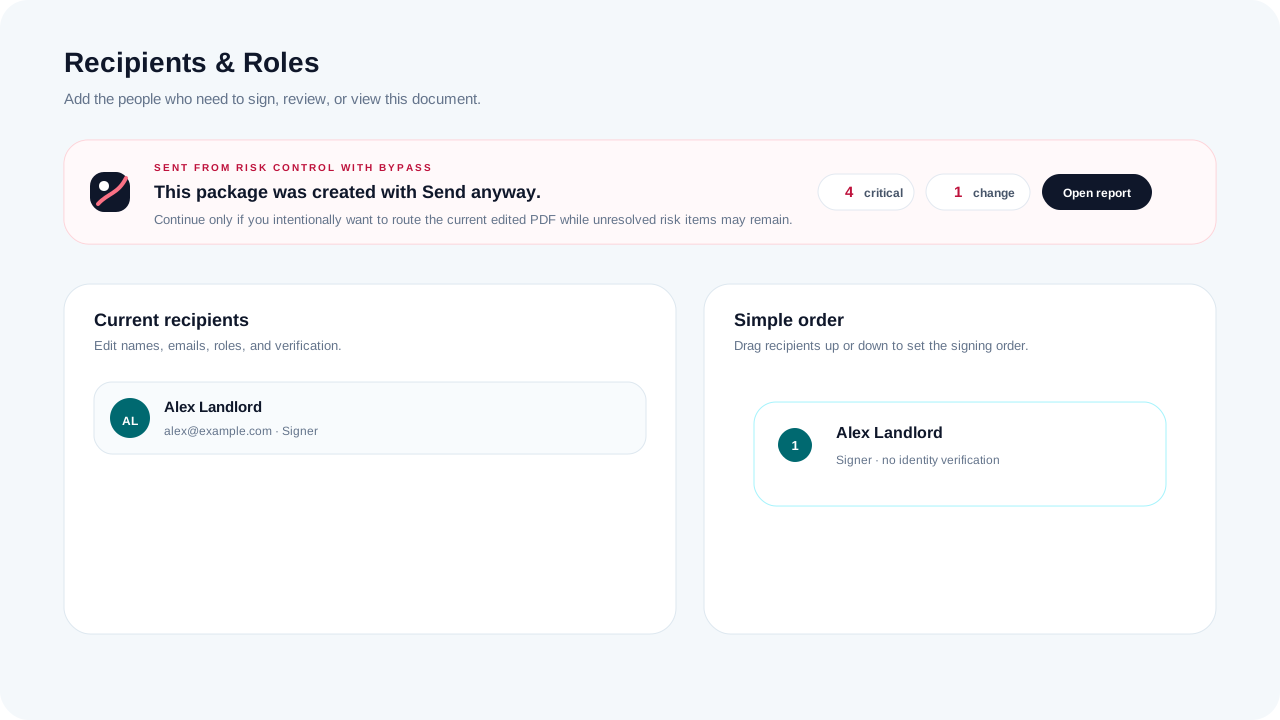
This makes the bypass auditable in a practical product sense. The user can proceed, but the interface keeps reminding them: this document was intentionally moved forward while unresolved risk may remain.
Step 6: email copy keeps the warning attached
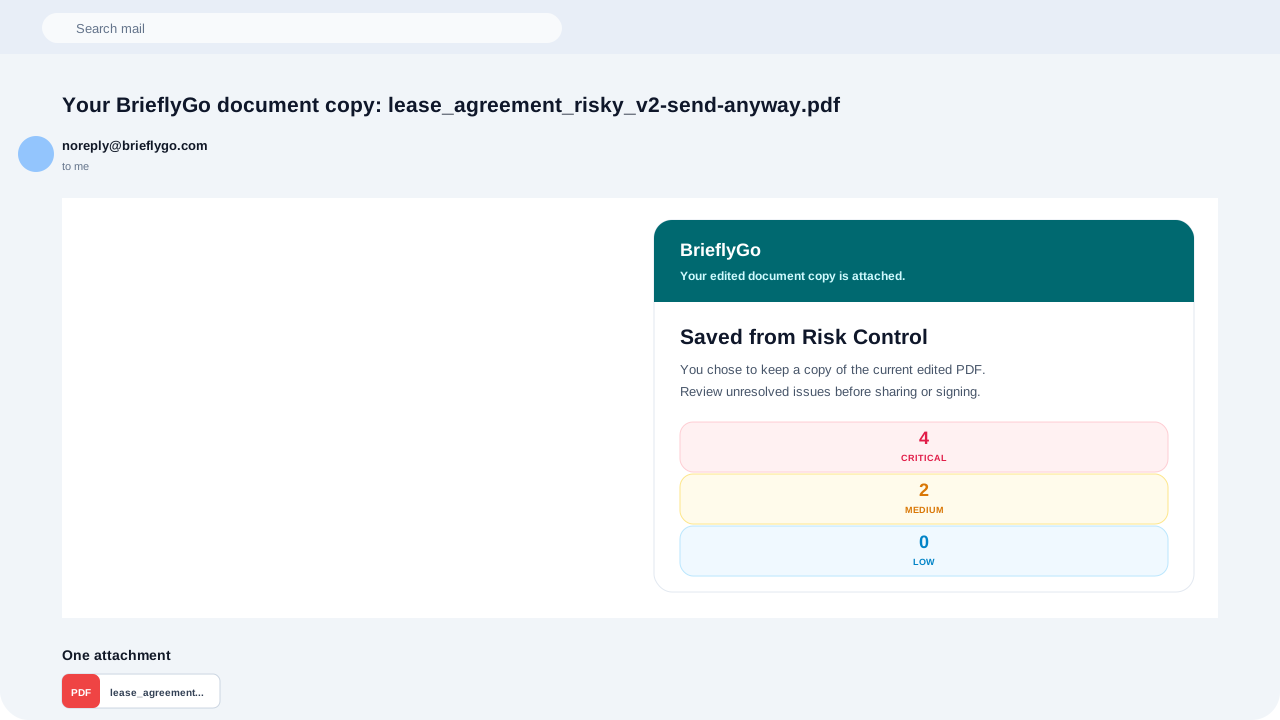
The email action is intentionally not just ?attach PDF.? It includes a short Risk Control summary in the message body, then attaches the edited PDF. That way, when the user later finds the file in Gmail, the context is still visible.
Why this is better than a normal warning
A warning that only says ?are you sure?? trains users to click past it. A useful document control gate should answer three questions:
- What is still risky? Critical and medium issue counts stay visible.
- What changed after AI reviewed it? Unchecked editor changes are called out before handoff.
- Where is the document going? The user chooses save online, download locally, or email a copy.
That is the product principle behind Send Anyway: do not remove user agency, but do not erase risk context either.
What happens when the original document is missing?
We also tightened the report-to-editor handoff. Anonymous reports can rely on browser storage for the original file, while signed-in reports can use secure storage. If the original document is missing, the editor now explains what happened and lets the user re-upload the same original file to reconnect the report to the editor.
This turns a dead-end error into a recoverable flow. The risk report still matters, and the user can restore the editable document without starting over.
The takeaway
Send Anyway is not about ignoring AI. It is about acknowledging that people still need to move documents through real workflows. BrieflyGo?s job is to keep the decision visible: what the AI found, what the user changed, what was checked, and where the document went next.
If you want to try the flow, start with a contract scan, open the report in Soft Editor, make a small edit, and click Send. If risk remains, BrieflyGo will show the new Send Anyway control gate.
Share this article
Summarize with AI(opens AI chat with article URL · Gemini: prompt copied to clipboard)
BrieflyGo AI
Don't sign before you know what you're signing.
Upload any contract — NDA, SOW, lease, or employment agreement — and get an instant AI risk report with clause-by-clause explanations.
Explore FormGuardian
Contract Types to Review
Check a Web Design Contract for Risky Terms
Upload a Web Design Contract to spot risky clauses, payment traps, ownership issues, and negotiation pressure points before you sign.
Learn more →
Check a Paid Ads Management Contract for Risky Terms
Upload a Paid Ads Management Contract to spot risky clauses, payment traps, ownership issues, and negotiation pressure points before you sign.
Learn more →
Check a Personal Loan Agreement for Risky Terms
Upload a Personal Loan Agreement to spot risky clauses, payment traps, ownership issues, and negotiation pressure points before you sign.
Learn more →
Contract Risk Library
Common Clause Risks
Free for your first contract
Spot the risk before you sign.
BrieflyGo flags hidden liabilities, unfair clauses, and missing protections in seconds.